
Docs menu
Build a scenario
Scenario file Generators vars and const Time and pace Defaults Relationships Schedules Instances Lifecycle Collections Connections Delivery behaviorStudio
Overview
Synthstudio is a local UI for YAML or JSON scenario files. It uses the same compiler and runtime as the CLI — the same diagnostics, sample, and run behavior.
Open a folder of scenarios, edit them with diagnostics, preview events, then run to real destinations.
Start Studio
synthtraffic studio --folder examples --port 8787Open http://127.0.0.1:8787, then choose a file under that folder. You can also launch from sample or run with --with-studio, which opens the scenario’s parent directory, loads that file, and starts Sample or Run.
Flags, Docker bind, and license: studio. CLI or Docker install: Install.
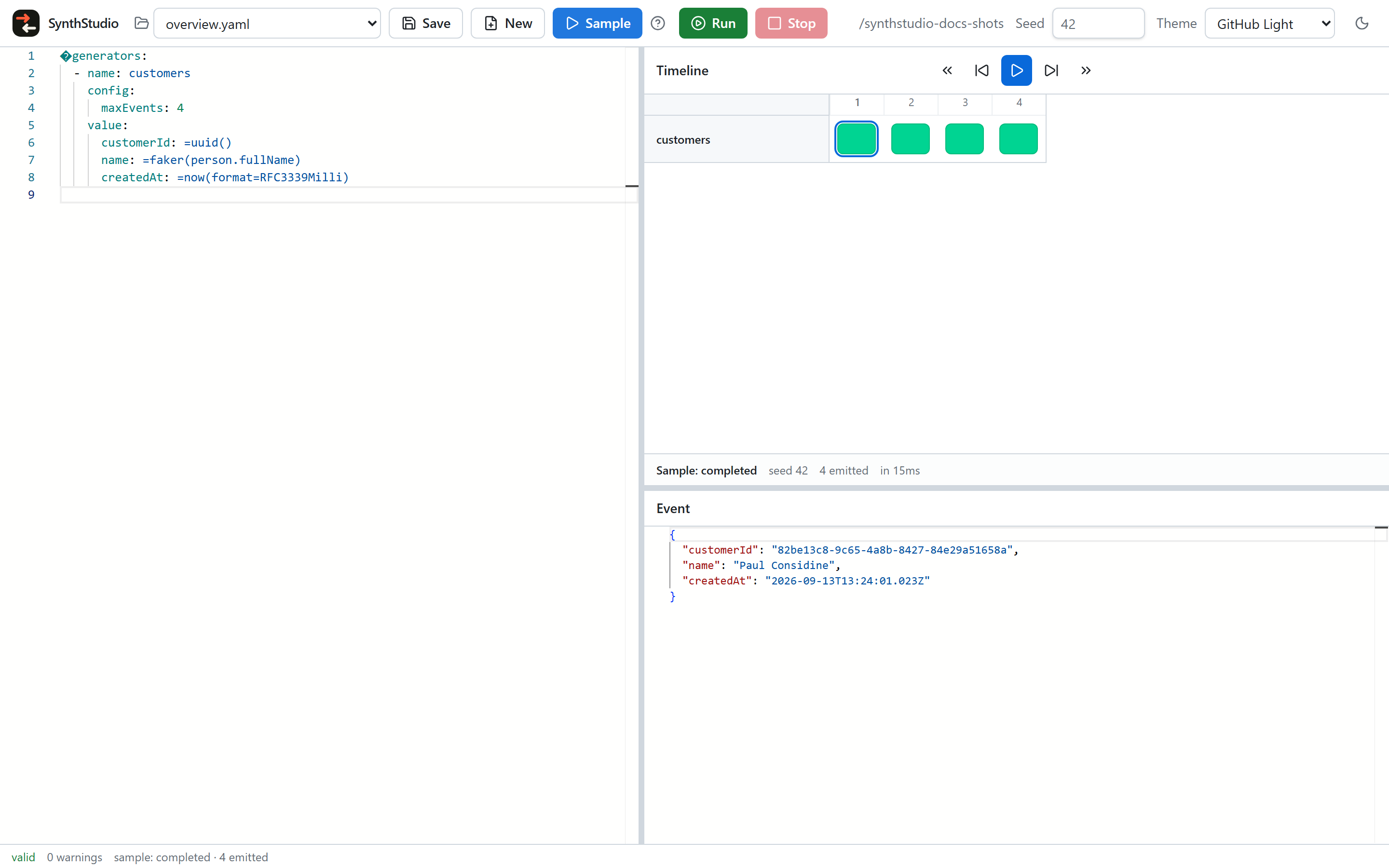
The window
The layout is one editor on the left and a timeline stacked over an Event inspector on the right. Drag the splitters; panes keep a minimum size so none of them collapse.
- Toolbar — file select, Save, New, Sample, Run, Stop, the workspace folder, Seed, and Theme.
- Editor — Monaco for YAML or JSON. Completions and as-you-type
STdiagnostics. See Workspace and editor. - Timeline — Sample and Run fill a grid of up to 200 events. See Sample and timeline.
- Event inspector — read-only JSON of the selected event’s payload.
- Footer —
validor an error count, plus warnings. Click either count to open the diagnostics list. While Sample or Run is active, the footer also shows that action’s state.
What it does
- Open, Save, and New stay inside
--folder. There is no OS file picker. - Sample runs preview mode (no connectors) into the timeline.
- Run uses the real runtime, including connectors when they are configured. Value-only generators, and connector-shaped generators with no connection, dry-run like CLI
run --stdout. Stop cancels the run. See Run and Stop.
What it does not do
Studio is not hosted on this website. It does not offer canvas editing, engine pause/resume, Kafka topic “read back,” or an unbounded Run timeline — only the first 200 emits stay in the grid.
Next: open a folder and edit.